Practical guide · Project preflight
Product noteHow to check your thread, fabric, and chart before you download
Use StitchBitz stash and skein estimates, check fabric size, understand tweed limits, and download an edited cross-stitch chart as a PDF or JPG.
Skein figures are planning estimates; tweed exports use the primary colour
 Source
 Pattern
The last screen before a new project can feel wonderfully certain. There is the chart, there are the DMC numbers, and the button says Download.
Take five minutes before you press it.
This is the craft-table version of laying out your timber before making the first cut. Check the finished size, the fabric, the colours you own, the thread estimates, and any editor-only details. A short preflight now can save a second trip to the shop or an unpleasant surprise halfway through the piece.
Begin with the chart you intend to stitch
Finish your paint, erase, and palette changes before checking materials. Every repainted cell can change the stitch count for two colours, and an erased background can reduce the amount of floss you need.
Use the confetti cleanup guide if the chart still has noisy single stitches. Use the DMC colour guide if you plan to work from your stash.
Then choose Fit to screen and inspect the whole design once more. Check the focal point, outside edge, and any area where you used a larger brush. Undo is still close at hand here. It becomes less useful after you have left the page with a shopping bag.
Step 1Mark the DMC colours already in your stash
Open Stash in the editor's right panel. The tab lists every DMC colour in the current pattern.
Choose a colour to mark it as owned. You can also enter a code under Add by DMC code. The counter at the top changes from, for example, 0/14 threads matched from your stash to 1/14.
Stash is a project checklist, not a full thread inventory. It records the code during the current editor session. It does not know whether your bobbin holds eight metres or eight centimetres, and it does not persist as a permanent account after a page reload.
Take the partial skeins out of the box. A tick beside DMC 310 tells you the colour is present. It does not tell you that the small tuft left on the bobbin will cover a dark background.
What to notice
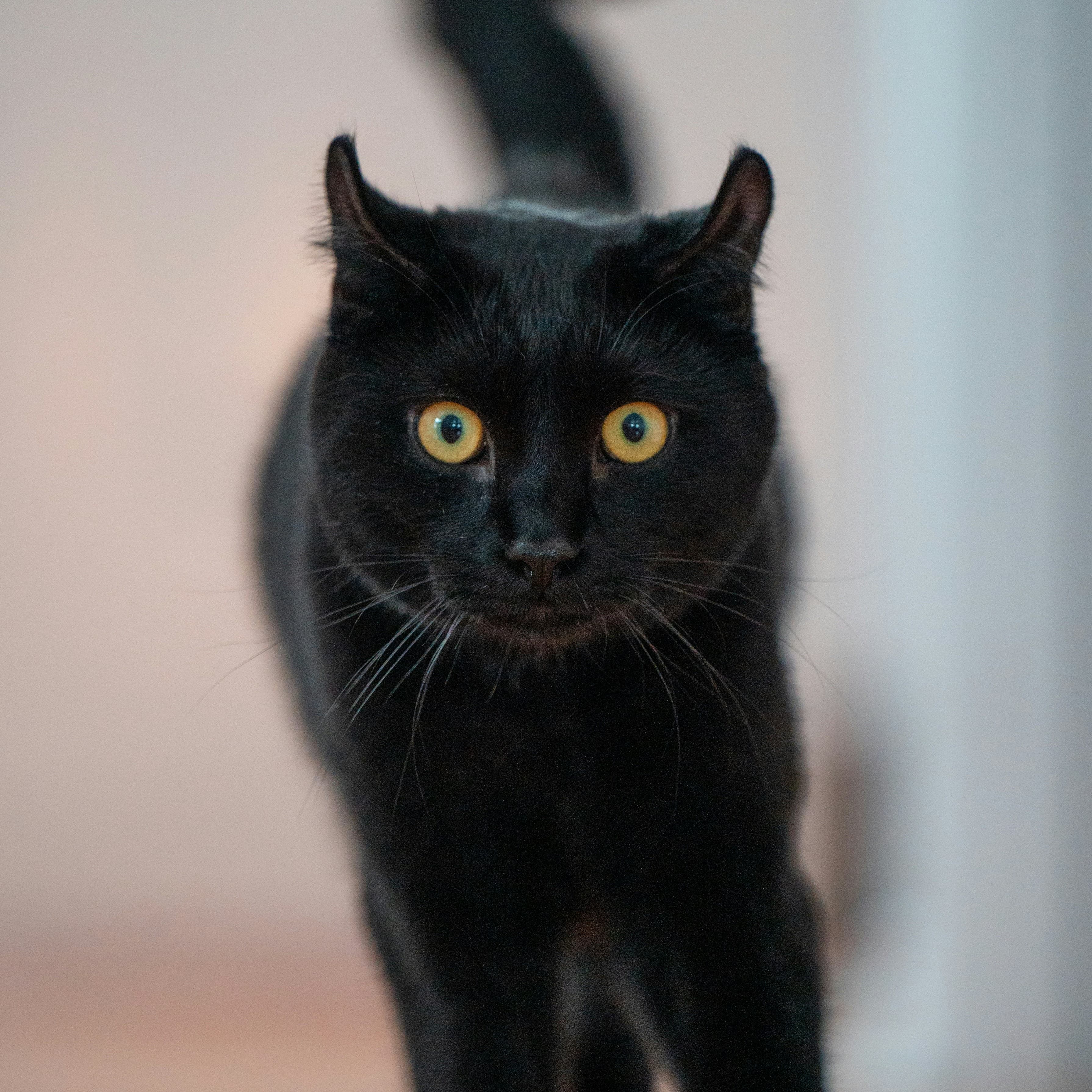
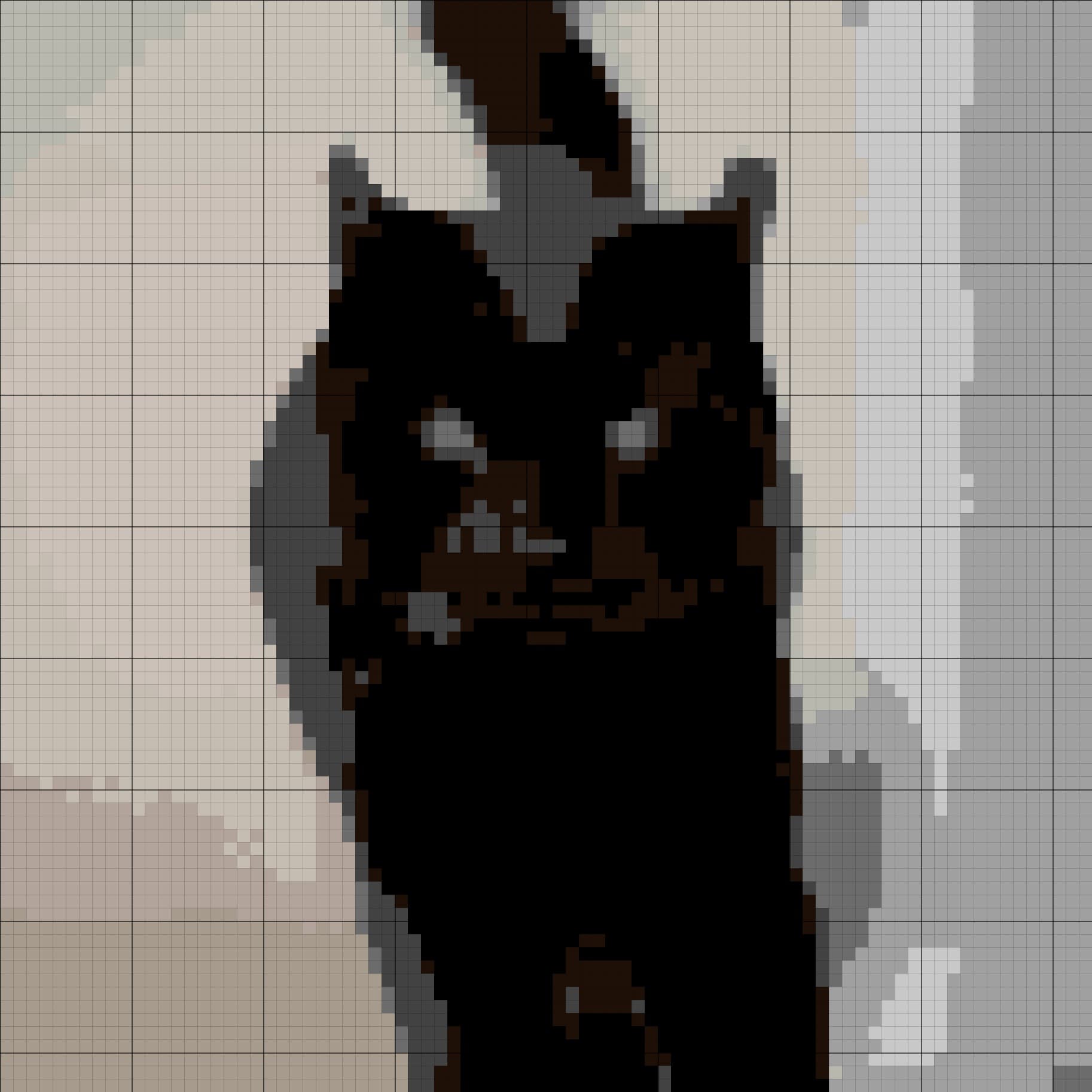
Black cat Stash tab with DMC 310 and two grey shades checked, plus the matched-thread counter.
Step 2Read the Skeins tab as an estimate, not an invoice
Open Skeins. The editor shows the number of stitches using each active DMC colour, an estimated whole-skein quantity, a Still need to buy list, and totals for the chart.
The current editor states its assumption above the list:
~260 stitches per 8m skein · 2 strands · 14-count Aida · 20% waste included
It also rounds every used colour up to at least one whole skein. This is a cautious planning display. Do not treat it as a promise of exact usage.
Real floss use changes with:
- Aida count;
- the number of strands in each cross;
- the way you start and finish threads;
- thread tails and mistakes;
- whether you carry, park, or cut between confetti stitches;
- fractional stitches or added backstitch;
- how much thread is already missing from a partial skein.
DMC stranded cotton is sold as an 8 metre skein made of six separable strands. You may stitch with two of those strands at a time, but your personal coverage still depends on technique.
Use the editor list to spot the heavy-use colours and the tiny ones. A shade with 2,100 stitches deserves a closer check than a shade used once. If a number matters to the budget, compare it with a dedicated floss calculator or stitch a measured sample using your own fabric and method.
What to notice
Skeins tab for the black cat, including the assumption line, DMC stitch counts, owned check, Still need to buy, and total.
Step 3Separate finished design size from fabric cut size
The pattern size tells you how much cloth the stitched grid occupies. Aida count means stitches per inch, so the same number of stitches produces a smaller finished design on a higher count.
StitchBitz shows the finished dimensions in centimetres and inches in the Download view. That is not automatically the amount of fabric to cut.
Add enough unstitched fabric around every side for your hoop, frame, lacing, washing, and finishing method. If the piece is going to a framer, ask how much margin they prefer before cutting. A neat 15 x 15 cm design on screen should not become a 15 x 15 cm fabric square with nowhere to hold or mount it.
Check the label on the physical Aida as well. Choosing 14-count in the generator does not change a piece of 16-count cloth waiting in your drawer.
Step 4Write down tweed cells before you leave the editor
Tweed (2 colours) lets you paint a cell with a primary and secondary DMC shade inside the manual editor. The diagonal split preview can help you plan a blend.
The current portable pattern format stores one colour index per cell. When StitchBitz prepares the Download view, PDF, and JPG, it keeps the primary tweed colour and drops the secondary colour from that cell.
This is a lossy fallback, not a visual preference setting.
If you used Tweed:
- Take a screenshot of each tweeded area at a useful zoom.
- Write down the primary and secondary DMC codes.
- Mark the blended cells on a printed chart or a separate working copy.
- Expect the stitch and skein totals to change after Download, because the editor counts both thread colours while the exported cell keeps one.
- Do not rely on the exported PDF or JPG alone to remember the blend.
If you need a self-contained chart that another stitcher can follow without your notes, replace each tweed cell with one DMC colour before Download.
What to notice
Close editor crop with `Tweeding DMC [primary] + [secondary]` badge and a few diagonal split cells. Pair it with the same crop in Download using the primary colour only.
Step 5Choose Download and run the pattern preflight
Choose Download at the top of the Edit step. StitchBitz rebuilds the preview from your painted and erased cells.
Check these details before saving a file:
- grid width and height in stitches;
- selected Aida count;
- finished width and height;
- total stitched cells;
- DMC colour count;
- owned colours in the thread list;
- any old palette shade that now has zero stitches;
- any tweed or backstitch note that the export cannot carry.
The Download page has a Materials card with Thread list & symbol chart. It lists symbols, DMC codes, names, and skein estimates. Owned colours are marked have.
You may notice that the Download page's skein values differ from the whole-skein figures in the editor. The two views currently use different estimation methods. Treat both as planning aids and do not combine them as if they were one exact calculation.
What to notice
Download view with pattern summary and Thread list & symbol chart open. Show one owned colour marked `have`.
Step 6Choose PDF or JPG for the next part of the project
Download PDF blueprint
Choose the PDF when you plan to print, count, and stitch from a chart.
The PDF includes:
- a cover chart in matched DMC colours with symbols;
- grid dimensions, Aida count, finished size, colour count, and total stitches;
- a bill of materials with symbol, DMC code, colour name, stitch count, and skein estimate;
- paginated grid sections for larger patterns.
Download hi-res JPG
Choose the JPG when you want one high-resolution colour chart image to view on a screen, annotate in an image app, or keep as a visual reference.
The JPG uses coloured cells with symbols, a fine stitch grid, and stronger guides every ten stitches.
For most counted projects, keep both. The PDF is the working plan. The JPG is a convenient whole-chart reference.
Paint and erase changes carry into both formats. Current tweed secondary colours and photo-pattern backstitch data do not.
A backstitch export warning
The manual editor can display backstitch lines already stored in some portable patterns, but the main photo-pattern Download flow does not preserve them in PDF or JPG as of 25 August 2026.
For a name, date, or short phrase, choose Backstitch Style in the cross-stitch text generator and download the PDF directly from that tool. Read the backstitch guide before relying on the manual editor for line work.
Download before you close the workbench
StitchBitz processes the pattern in your browser and does not ask you to create an account. The tradeoff is that the current manual edits and stash marks are not a permanent cloud project.
Save the PDF and JPG before refreshing the page, closing the tab, or leaving the session for later. Give the files a name you will recognise. If you made special tweed or backstitch notes, keep them in the same project folder.
Then stop checking.
A project can always absorb one more calculation, one more floss toss, one more perfectly labelled bobbin. At some point the preparation has done its job. The chart is a map made by a human, and the small adjustments at the hoop are part of the journey.
Gather the thread. Cut the fabric with room to breathe. Make the first cross.
One useful pass is enough to begin
Make the chart, improve one patch, then call it ready
Organic shapes in the real world rarely have razor-sharp edges. Embrace the unique edges in your chart—they give your handmade pattern its character.
Keep refining
Related guides
Clean up confetti stitches
Decide which isolated stitches carry useful detail, then erase or repaint the ones that only create extra thread changes.
Change or replace DMC colours
Add an exact DMC code or find the nearest shade, then test the replacement without losing the design’s light and dark structure.
Plan backstitch detail
Learn where a fine line helps, where it makes a design heavy, and what StitchBitz can currently display and export.